

You are using an out of date browser. It may not display this or other websites correctly.
You should upgrade or use an alternative browser.
You should upgrade or use an alternative browser.
Testing thread
- Thread starter John
- Start date










G
Guest
Guest
Geoffers,
To start your post/comment you will start in this area.....
So, here is my description of the latest build, model arrival, question about something I cannot get my head around.... and on it goes blah! blah!....
I now need to insert/upload my photo(s) with comments.... And so I click on 'Upload Attachments' as you have done, and I need to re-size it so that the Moles among us can see it.
The Upload URL bar scrolls across and once it finishes there is a small image of your chosen object, and to the right is the word 'Insert' and then in Blue are the words Thumbnail, Small, Medium, Large, Fullsize and Remove.
Normally to get an image to fill the area I would choose 'Large' which I have done here.... But notice where the flashing icon is at the bottom right of the image once you move your mouse pointer off the image.... so that is the end of my text I now click the return key (to the right of the @ key) to move the icon to the next line.... and then click on the blue 'Large' word.
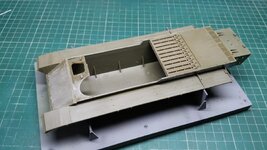
And as described the icon is to the bottom right of the photo, I clicked on the return button and that has moved the icon to the next text or image position as here
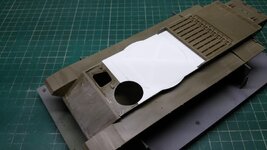
And all you need to do is repeat the operation described above.
I had to learn how to do this after a frustrating couple of hours trying to adjust and put the text in the right place.
Hope this helps
Mike.
PS do not forget to click 'Post Reply.
To start your post/comment you will start in this area.....
So, here is my description of the latest build, model arrival, question about something I cannot get my head around.... and on it goes blah! blah!....
I now need to insert/upload my photo(s) with comments.... And so I click on 'Upload Attachments' as you have done, and I need to re-size it so that the Moles among us can see it.
The Upload URL bar scrolls across and once it finishes there is a small image of your chosen object, and to the right is the word 'Insert' and then in Blue are the words Thumbnail, Small, Medium, Large, Fullsize and Remove.
Normally to get an image to fill the area I would choose 'Large' which I have done here.... But notice where the flashing icon is at the bottom right of the image once you move your mouse pointer off the image.... so that is the end of my text I now click the return key (to the right of the @ key) to move the icon to the next line.... and then click on the blue 'Large' word.
And as described the icon is to the bottom right of the photo, I clicked on the return button and that has moved the icon to the next text or image position as here
And all you need to do is repeat the operation described above.
I had to learn how to do this after a frustrating couple of hours trying to adjust and put the text in the right place.
Hope this helps
Mike.
PS do not forget to click 'Post Reply.


Looks likeit worked!
Hi Peter, could you tell us how you did the multiple quotes? I only can quote 1 time? Cheers
Testing 123
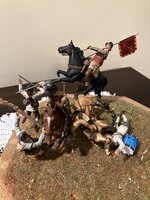
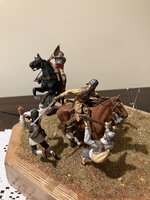
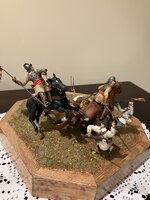
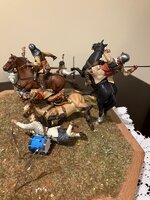
Testing different photos
filedata/fetch?id=1232907&d=1726993625 filedata/fetch?id=1232908&d=1726993625 filedata/fetch?id=1232909&d=1726993625 filedata/fetch?id=1232910&d=1726993626 four thumbnails
Testing 123
Hi Joe
first step is to press the "quote icon on each of the posts you want to quote, then press the 'post reply' icon
i hve found that I have to select the quotes before I type any text
Peter

- Joined
- Mar 4, 2004
- Messages
- 4,822
1/3
Hi Peter, could you tell us how you did the multiple quotes? I only can quote 1 time? Cheers
I did a post here https://www.scalemodelling.co.uk/articles/1232928-multiple-quotes
G
Guest
Guest
Thanks ,now going to try it out .





1/3
Really getting both confused and annoyed at all this messing about. One last time before I give up
just tried again, pressed upload and take to my phones files, selected photo which seems to take ages. Yet again the photo is in a box on the left hand side. Box above photo saying, photo title and box below write something etc. Pressing this and that but the screen goes foggy .
not wasting my time further today, had a guts full folks
just tried again, pressed upload and take to my phones files, selected photo which seems to take ages. Yet again the photo is in a box on the left hand side. Box above photo saying, photo title and box below write something etc. Pressing this and that but the screen goes foggy .
not wasting my time further today, had a guts full folks
1/3
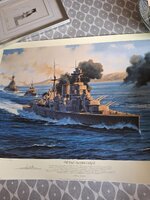
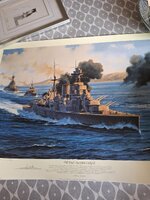
Almost there thanks Ian

1/3
Almost there thanks Ian
Dont use the upload button Bob, you will not get the option to resize. Use the "Upload Attachment" button. That will give you the option to resize. Mike did a good post above on this thread which is helpful.
1/3
Many thanks Steve
- Joined
- Mar 4, 2004
- Messages
- 4,822
1/3
I did a little post here about uploading images https://www.scalemodelling.co.uk/articles/1232811-uploading-images






Legal Notice
scalemodelling.co.uk is a privately operated online discussion forum. All content posted by members reflects their own views and opinions and does not necessarily represent those of the forum owners or administrators. While reasonable efforts are made to moderate content, no responsibility is accepted for user-generated material. By using this site, you agree to comply with UK law and the forum rules.